Location Activity
Find All Trains Passing A Specific Location
This is the heart of our application. Here you can display the trains passing by either using the station name or your position data.
Enter the station name in the 'Stop' field, after the third letter the search results are suggested. Mark the one you want and the list of passing trains is displayed. Umlauts and accents do not necessarily have to be entered.
All station names are stored in the local language. When searching, umlauts correspond to their vowels ä=a, ö=o. There are exceptions, for example ø (DK,NO), which cannot be searched for with an 'o'. To search for København you have to enter K_benhavn if you don't have ø on your keyboard. The underscore '_' is a placeholder for all characters. Once the station is selected, the search is carried out automatically and a table appears with the corresponding arrival, departure and transit times. If you move the mouse over the column title, a short description of the corresponding column appears.
If you want to browse around the system, you can do so using the random query. Press the button . The data for any stop in the selected country will be determined and displayed.
If you are out and about with a mobile device, however, it is easier to
search for the position using a GPS query. To do this, you have to click on the crosshairs
 . Your position will soon be determined and displayed on the map. A map with your position and the position of the nearest station appears in the previously empty field. The search must be confirmed by clicking on . You will soon see the corresponding list on the left. Depending on the distance to the nearest station/rails, the name of the station or the position coordinates will be displayed in the title bar.
Simulation mode
If you want to see a graphic simulation at the selected location, click on the map to go into simulation mode.The simulation map shows the corresponding trains as circles that slowly move along their routes. The routes that are relevant for the calculated trains are shown in a dark red color. Trains that have already passed your position appear on the map, as do those that will still pass. Clicking on a train displays the corresponding timetable on the right.
On the simulation map you can then select a new location by clicking on the map and have the trains passing by recalculated. A blue marker shows your selected location and a green one shows the next station.
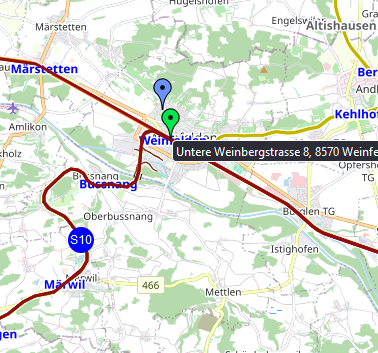
In simulation mode you can select a new location by clicking on a position on the map or by entering text.
If the selected point on the map is too far from a railway track, the next station is selected as a reference!If you have registered and are logged in, the timetable will be enriched with delay data. The background color of the arrival and departure times changes depending on the delay (yellow-red-black). Delay data is also taken into account in the train positions in simulation mode. However, delay data is always a snapshot at the time of calculation, i.e. the delay data is only updated when the page is loaded or refreshed.
Currently, such data is provided by CH, NL, FI, FR, US.